
AcePlayer -Powerful Media Player4.4.1 - App Store
You'll be able to see results in few seconds.
Publisher Description
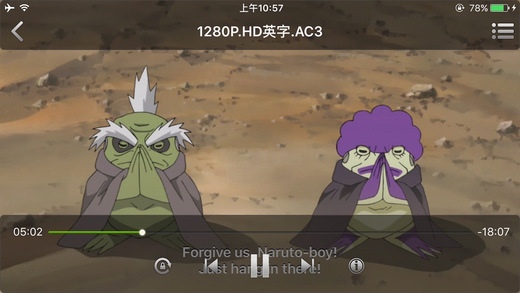
AcePlayer can play almost any file format movies , music, photos and streaming directly on iPhone/iPod/iPad. Just transfer the media files to your ios devices by iTunes File Shareing or over Wi-Fi,then it can be played at once. With built-in FTP/Samba/UPnP client, it is not just a local movie player,it is "Movie/Music Player & Photo Viewer & Streaming Media Player".
Features
1.Support almost any video formats: WMV, AVI, MKV, RMVB, RM, XVID, MP4, 3GP, MPG...
2.Support almost any audio formats: MP3, WMA, RM, ACC, OGG, APE, FLAC,FLV...
3.Support smi, srt, ass, ssa, sub txt subtitle.
4.Use iTunes to sync movies to AcePlayer.
5.Easily Wi-Fi transfer to download media files from PC to your ios devices.
6.Build-in Open Url Client to support HTTP, FTP, MMS, RTSP, SMB, RTP streaming.
7.Build-in UPnP Client to stream media files from most of all UPnP/DLNA media servers.
8.Build-in FTP Client to stream media files from FTP Servers(Note: stream only for PASV mode).
9.Build-in Samba Client to stream media files from Samba Servers.
10.Build-in file manager supported: move files from folder to folder,file delete,file rename,folder creation,folder delete.
11.Multi playlist supported: you can create playlist and and media file to playlist, and every folder is automatically made as a playlist.
12."Open In" feature supported: open video and audio files from Mail email attachments and Safari Web browser.
13. aceplayer://URL scheme.
14.iPad 2 dual core decoding supported.For iPad 2,dual-core of A5 chip could be used to decode at the same time.
15.TV out support.
16.AirPlay supported(Note: only for QuickTime plugin).
17.Buid-in photo viewer to support:jpeg, jpg, png, bmp...
18.It can play music in the background mode, so that build your playlist, you can us it as a music player.
19. You can set password for your folder in the documents, just click the button on the right of the folder.
FAQ
1. How to add video with USB?
Connect PC with USB,run iTunes 9.1 or above.
In iTunes, Devices->(Your iPhone)->Apps, drag the slider down, select AcePlayer in the File Sharing and use "add.." button on the lower right corner to add files.
2. In documents, what do the buttons represent on the toolbar?
In normal mode, they represent "return", "home", "sort", "edit". In editing mode, they represent "Playlist", "new folder", "rename", "cut", "paste", "delete", "return".
3. how to move files to the new folder?
Click "edit" button,select files, click "cut" button,click "return" button,enter the new folder,click "edit" button,click "paste" button.
4. Where to add files to Playlist?
Turn to the documents, click the "edit" button, select the Audio/Video files you want to add, click the "playlist" button to select the playlist.
5. How to use win7 as a media server?
http://ranysoft.wordpress.com/2012/06/03/config-win7-to-be-a-upnp-server/
Requires iOS 7.1 or later. Compatible with iPhone, iPad, and iPod touch.
About AcePlayer -Powerful Media Player
The company that develops AcePlayer -Powerful Media Player is Rany Yuen. The latest version released by its developer is 4.4.1.
To install AcePlayer -Powerful Media Player on your iOS device, just click the green Continue To App button above to start the installation process. The app is listed on our website since 2012-07-27 and was downloaded 0 times. We have already checked if the download link is safe, however for your own protection we recommend that you scan the downloaded app with your antivirus. Your antivirus may detect the AcePlayer -Powerful Media Player as malware if the download link is broken.
How to install AcePlayer -Powerful Media Player on your iOS device:
- Click on the Continue To App button on our website. This will redirect you to the App Store.
- Once the AcePlayer -Powerful Media Player is shown in the iTunes listing of your iOS device, you can start its download and installation. Tap on the GET button to the right of the app to start downloading it.
- If you are not logged-in the iOS appstore app, you'll be prompted for your your Apple ID and/or password.
- After AcePlayer -Powerful Media Player is downloaded, you'll see an INSTALL button to the right. Tap on it to start the actual installation of the iOS app.
- Once installation is finished you can tap on the OPEN button to start it. Its icon will also be added to your device home screen.
Program Details
System requirements
Download information
Pricing
Version History
version 4.4.1
posted on 2012-07-27
Disclaimer
Official App Store Link
We do not host AcePlayer -Powerful Media Player on our servers. We did not scan it for viruses, adware, spyware or other type of malware. This app is hosted by Apple and passed their terms and conditions to be listed there. We recommend caution when installing it.
The App Store link for AcePlayer -Powerful Media Player is provided to you by apps112.com without any warranties, representations or guarantees of any kind, so access it at your own risk.
If you have questions regarding this particular app contact the publisher directly. For questions about the functionalities of apps112.com contact us.
